coldfa||
Free for Mac · Open source

Every AI you pay for, working together.

Give Claude Code, Codex and Copilot each a desk that remembers its work. Let them check each other's answers, use every subscription you already pay for, and see at a glance which one needs you.

It's Project Coldfall. Say it “cold-fall.” The logo, , draws the two L's as pipes, the terminal symbol for passing output along.

macOS 13 or later. Free and open source under the MIT license. No account.

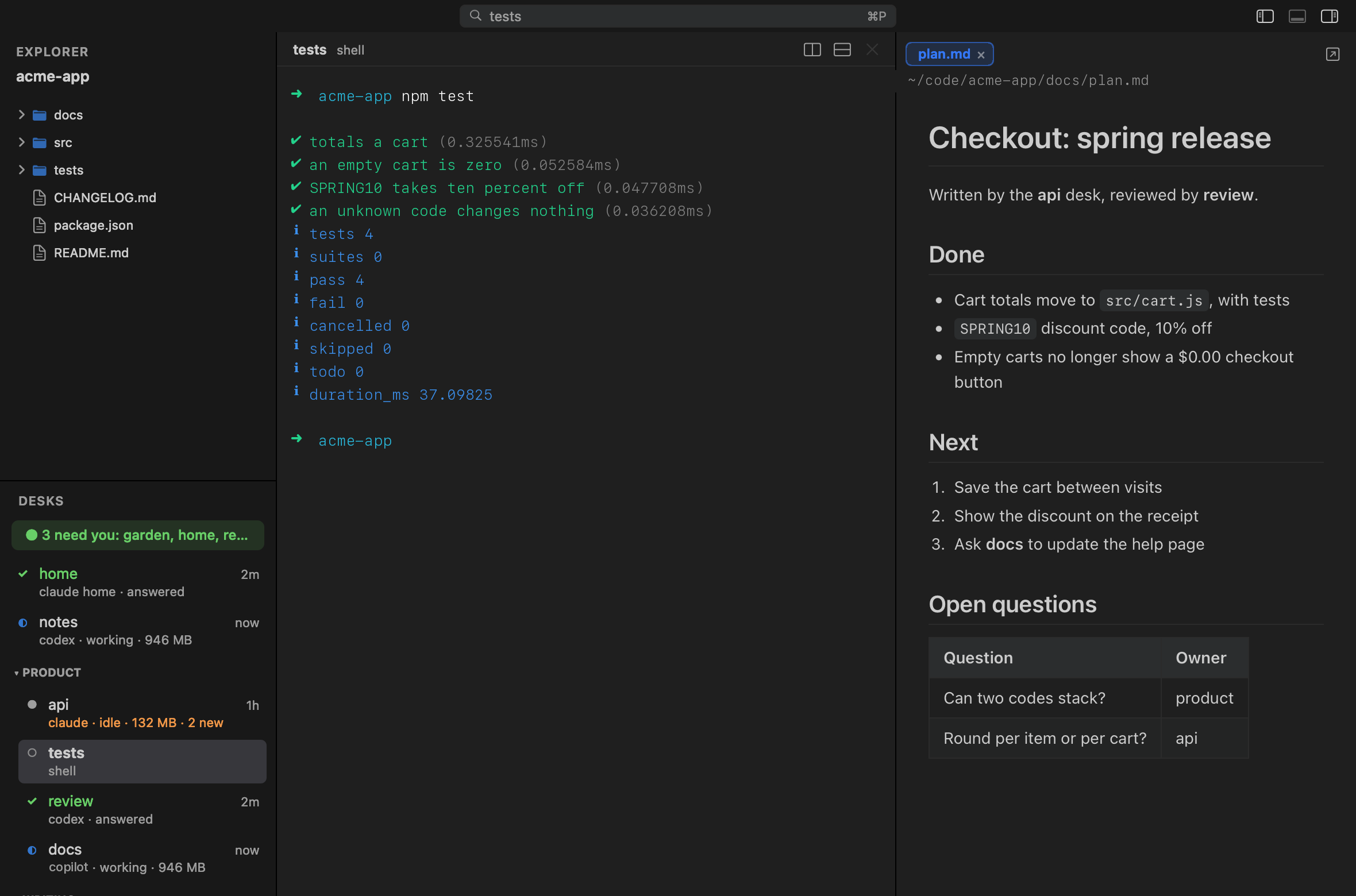
The Project Coldfall window: a list of desks on the left, a terminal in the middle and a formatted document on the right.

Every name and file here is made up.

Who it's for

pay for more than one AI

Claude and ChatGPT, or Copilot and Google AI too. Use them together instead of paying for one you barely open.

use agents for more than code

Research, writing, planning, your finances. A desk for each job, each remembering its own work.

want to know what they run

See what every agent has installed, what changed since you looked, and switch off what it doesn't need.

Second opinions

Have one AI check another's work.

Claude Code wrote it? Ask Codex to review it, or the other way round. Different models catch different mistakes. The reviewer is kept read-only by the vendor's own setting, so it can look at your files but can't change them, and the whole exchange is saved as a plain text file you can read later.

  • Works between the agents you have installed. Read-only is enforced for Claude and Codex; for others, the app tells you it's only requested.
  • Fan out: ask one question across several project folders at once, with the cost checked against your weekly limit before it runs.
Agent mail: the api desk asks Codex to review a discount calculation, and Codex, working read-only, points out a rounding error and a missing test.

Every plan you pay for

Get your money's worth from each subscription.

If you pay for Claude and ChatGPT, you're probably using one of them for almost everything. The meter puts each plan's weekly usage side by side and tells you when to switch.

  • Codex and Copilot usage is read automatically. Claude needs a one-click recorder in Settings.
  • Each desk also shows how much memory it's using.
The usage meter: Claude at 72 percent of its week, Codex at 12, with the advice to send the next job to Codex.

A desk for every job

Specialists that remember, not sessions you lose.

A desk is one agent with its own folder, instructions and conversation, that you come back to for weeks. One for your code, one for research, one for writing, one for your budget. Claude, Codex and Antigravity desks that Project Coldfall starts pick up their conversation after a restart.

  • Each desk runs the vendor's own tool, so your logins, settings and hooks work as they already do.
  • Group desks, drag them into order, and hide the ones you're not using without losing them.
The desk list grouped by job, with one hidden desk listed at the bottom.

Needs you

See which one is waiting, without checking each one.

When a desk finishes while you're looking at another one, and its screen has changed, it's marked. A green line at the top names those desks, oldest first, and ⌘0 takes you straight there.

  • A folded group still shows how many of its desks are waiting.
  • Turn on Keep Active Groups on Top: groups with waiting desks rise first, then the most recently used.
The desk list, with a green line reading 3 need you and a folded group showing one waiting desk.

What your agents run

Know what's installed, and what changed.

Plugins and skills can add commands that run by themselves, on every session or every tool call. Right-click a desk to see what it loads, read from the vendor's own files: for Claude, its servers, hooks, skills and plugins; for Codex and Antigravity, their servers and skills.

The next time you look, anything new is marked, and a desk's row says "2 new" until you've checked.

  • Switch off the local MCP servers a desk doesn't need, for Claude and Codex desks, and it stops starting them.
What This Desk Has for a desk called api, reporting one new hook and one updated plugin since the last look.

Easy to start

No agent installed yet? It shows you how.

On first launch, Project Coldfall finds the agents you already have and sets up a desk for each. If you have none, it lists how to install each one and what it needs, with a button to copy the command. Press Check again and you're set.

The welcome screen on a Mac with no agents installed, listing install commands with Copy buttons.

And more

Small things that add up.

Quick open

⌘P finds any desk or file by a few letters.

A reader beside the terminal

Files your agents write open next to them, with Markdown and PDFs shown properly.

Splits

Add a shell beside or below the agent, in the same desk.

Stop a desk, free its memory

End a desk you're done with for now. Claude, Codex and Antigravity desks pick up their conversation when you start them again.

Remote machines too

A desk can be an SSH connection to another computer, found from your own SSH settings.

Your file, your rules

Every desk lives in one plain text file you can edit by hand. The app picks up changes as you make them.

Works with

Whatever you already use.

Project Coldfall runs each vendor's own tool, so you keep your existing subscriptions, logins and settings.

Claude CodeCodexAntigravity CLIGitHub Copilot CLIGrokOllama

Install

Install in three steps.

  1. Download and move it to Applications.

    Download the latest version, unzip it, and drag Project Coldfall into your Applications folder.

    Want to check the file first? Before you unzip it, run this in Terminal and compare the result to the SHA-256 digest listed next to the zip on the release page. If they don't match, don't open it.

    shasum -a 256 ~/Downloads/Project-Coldfall.app.zip
  2. Let macOS open it.

    This build isn't signed and notarized through Apple's developer program yet, so macOS blocks the first launch. Open it once and click Done on the warning. Then open System Settings, go to Privacy & Security, scroll down to Security, and click Open Anyway. macOS may ask for your password.

    Rather use Terminal? This does the same thing:

    xattr -d com.apple.quarantine "/Applications/Project Coldfall.app"
  3. Open it.

    It finds the agents you have and makes a desk for each. The guide shows what to do next.

Rather build it yourself? The source builds with one script, and you don't need Xcode.

What it sends

Almost nothing, and you can see exactly what.

Once a day, Project Coldfall checks for a new version. The request carries three pieces of information:
  • a random ID made on your Mac,
  • the app's version,
  • your macOS version.

That's how we count installs and let you know when there's an update. It never sends your desks, files, conversations or anything you type. Like any web request, it reaches the server from your internet address; the app doesn't store that, and the server keeps no list of IDs, only daily counts. Its code is public, and you can turn it off in Settings.

Questions

Good to know.

Why not just use terminal tabs?

Tabs hold terminals. They don't tell you which agent is waiting on you, don't reopen a conversation after a restart, can't have one agent review another's work read-only, and can't show you how much of each plan you've used. That's what the app adds.

Is it really free?

Yes. It's open source under the MIT license, with no account and no sign-up. You use your own subscription with each vendor, the one you already have.

Does it replace Claude Code or Codex?

No. It runs them. Each desk starts the vendor's own tool in a real terminal, so everything you've set up for them keeps working.

Do I need to be a developer?

No, but you'll need an AI agent that runs in the terminal, like Claude Code or Codex. If you don't have one, the app walks you through installing it. After that it's clicking between desks.

Does it send my code or conversations anywhere?

No. Your agents talk to their own vendors exactly as they would without Project Coldfall. The app itself only sends the daily update check described above, which you can turn off.

Why does macOS warn me when I open it?

This build isn't signed and notarized through Apple's paid developer program yet, so macOS can't vouch for it and asks first. The install steps above show how to open it, or you can build it from the source yourself.

Does it work on Windows or Linux?

Not today. It's a Mac app.

Put every AI you pay for to work.

Free, open source, and a few minutes to set up.